Adding Users
Who Can Add Users
- Content Managers
Either to the platform:

Or to a specific group:
- Right-click on a group and select Add User.
- Group Admin
-
- Members and Permissions section
- .
- Automatically
- This platform is configured to automatically create new users who login through UB NetID SSO.
- Team Leaders
- Team leaders can add existing users to their team, but cannot add new people to the platform. Have them login first via single sign-on as that will validate their account and enable you to add them to your team.
How Users Are Added
Automatically via Auto-Create
When users are added via SSO, we get their first and last name, and their email. That's all. They will be able to update their on-line profile. Also, they are added as regular users, not Mentors.
Automatically created users are placed in a group called Auto-Created Users. This allows you to easily see who has recently joined & move them out of this group once you’ve done whatever introductory work you’d like to do (such assign them a program, or send them a message).
You can see these automatically-created users:
- Select Auto-Created Users group
If you want to disable auto-creation, contact TrustedPeer support. Once disabled, anyone not already known to the platform will be denied access, even though they may have logged in successfully through SSO.
One-by-One
Content Manager can add a user by selecting the button on the
- Dashboard drop down.
- As Content Mgr dashboard, Users tab, or on the
- As Group Admin dashboard.
The difference is that if you use the Groups dashboard, the user will be added to the selected group. This may save you some time, if you're adding more than one user. If you do not use the Group dashboard, you can still add, or move the new user to a different group at a later time.
When you select the button, a popup will be displayed:
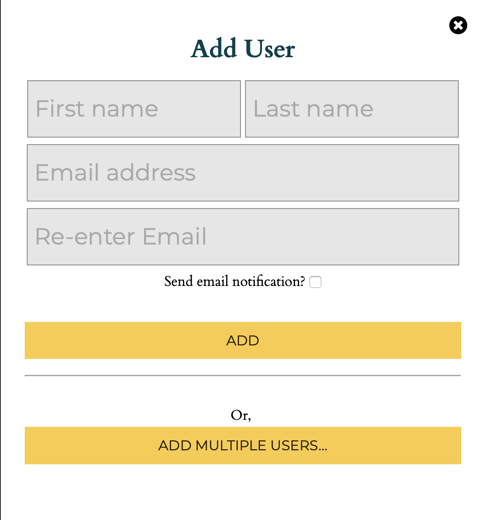
You will need to provide the first and last name, and the email for the new user. Enter the email twice to make sure it is correct.
Immediately below the input there is a checkbox option. If selected, then when the user is added, we'll send a Welcome Email to them which includes login procedures and allows them to set a password. You don't have to send the message immediately: You may choose to add a number of users ahead of time, and then use some other messaging system to notify them. Or, you can click to resend the Welcome Email:
- Click the Activate checkmark associated with the new user.
Click to submit the information.
New Users will be able to update their on-line profile. Also, they are added as regular users, not Mentors.
Bulk Upload
Content Manager can also add a number of users at the same time by uploading a comma-separated-value (CSV) file.
To start the bulk upload, click the as mentioned in the previous section, but click the button.
You'll be presented with a popup where you can choose the file to be uploaded. As before, there is a checkbox option to send Welcome Email to each of the new users.
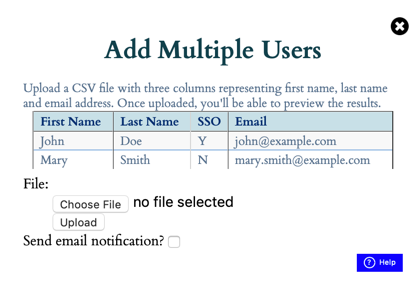
Note the button on that popup. That will take you to this page: Add Multiple Users, where we detail the file format.
The bulk method has many benefits over adding users one-by-one:
- You can provide much more information about each new user including telephone number and a short biographical summary
- You can select which users should be designated as Mentors
- You can indicate which users should use UB NetID SSO and which must login using a local email / password.
As a convenience, you can upload the same file many times: Users already in the system will be skipped. Note this means we will not change a value (e.g., telephone number) if it differs, but the user has already been added.
One caution: If you're uploading to a Group, all the users will be added to the group (as you would expect). If you upload the same file to another Group, it will add the users to the new group, even though they won't be added to the platform more than once. For this reason, we recommend if you're going to be uploading to groups, use separate spreadsheets. If you're going to be uploading to the Users tab, use a single spreadsheet and let the platform skip already added people.
Bulk Upload and Mentor Recruiting
Some organizations gather Mentor information through sign-ups or applications. If properly constructed, these applications may be uploaded with little to no modification to create new Mentors. See Using Google Forms for Recruiting for a detailed example.See also:
- Add Multiple Users via CSV Upload
- Users Tab
- Using Google Forms for Recruiting
- Content Manager Category
Search:
Still need help?
- Go to Help Center
- Using Help Center
- Send us a note right now:
- Email us at support@trustedpeer.com